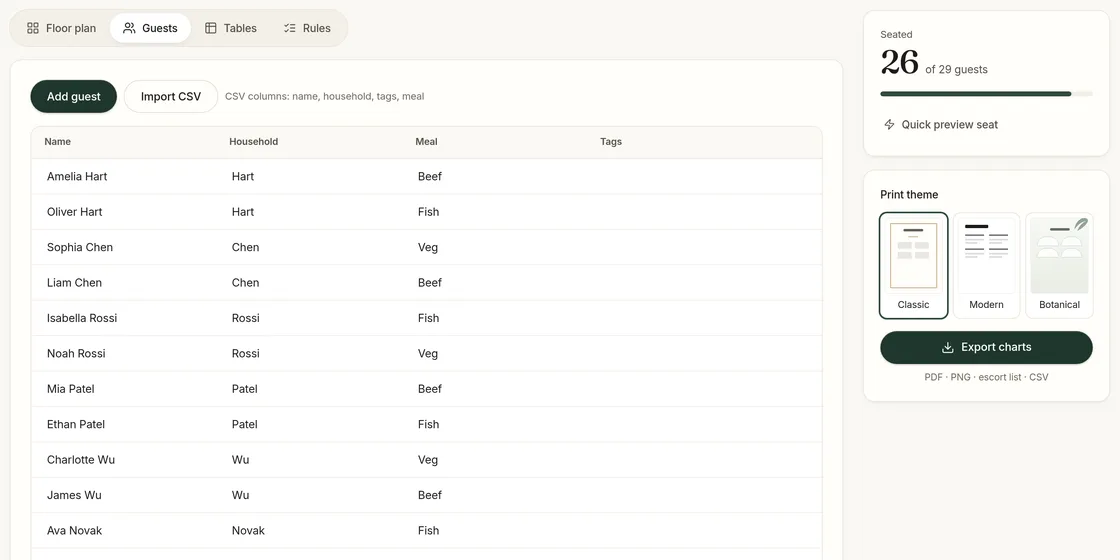
Most seating charts start life as a list. The quality of that list decides how much work the chart will be. A list with one person per row and a clear household for each guest can be auto-seated in moments; a list with "John + Mary + kids" on one line needs cleaning first. This page walks through the format SeatFinch expects, how to get your list into it, and what to check before you import.
The guest list format
SeatFinch imports a CSV (comma-separated values) file with up to four columns:
| Column | Required | Example | What it is used for |
|---|---|---|---|
| name | Yes | Amelia Hart | The name printed on the chart and escort list |
| household (or group) | Recommended | Hart | Keeps a couple or family at one table |
| tags | Optional | college; bridal party | Your own labels, shown in the guest list |
| meal | Optional | Vegetarian | Passed through to the caterer export |
The first row should hold the column names. Column order doesn’t matter, and extra columns are ignored, so you can usually export your existing spreadsheet as-is.
Preparing your list
- One person per row. Split entries like "The Rossi family (4)" into four rows, one per person, each with household "Rossi". If you don’t know a plus-one’s name yet, add a row such as "Guest of Noah Rossi" with the same household.
- Give every household a name. Couples, families and anyone who arrived together should share a household value. Use something unique — "Chen (Sophia)" and "Chen (David)" if you have two Chen families.
- Only include people who are coming. Filter out declined RSVPs before exporting. You can add late acceptances later.
- Keep meals consistent. Choose one spelling per option — "Vegetarian", not a mix of "veg", "Veggie" and "V" — so the caterer list is easy to read.
- Export as CSV. In Excel use File → Save As → CSV UTF-8. In Google Sheets use File → Download → Comma-separated values. In Numbers use File → Export To → CSV.
Import your guest list and see it seated in minutes.
Start planning freeImporting into SeatFinch
Open your event, go to the Guests tab and choose Import CSV. The guests appear in the table straight away, where you can edit any cell, add someone who was missing, or delete a row. If you prefer, you can skip the file entirely and add guests one at a time with Add guest.
Once the list is in, add your tables and rules, then press Auto-seat. The household column does most of the work: everyone with the same household is seated together without you writing a single rule.
Common problems and fixes
Everyone imported into one column. Your file uses semicolons instead of commas, which happens with some European spreadsheet settings. Re-export with commas, or open the file in Google Sheets and download it again as CSV.
Strange characters in names. The file wasn’t saved as UTF-8. Use the CSV UTF-8 option in Excel or export from Google Sheets.
A family was split across tables. Check that every member has exactly the same household value — "Rossi" and "Rossi " (with a trailing space) are different. Also check that the household isn’t larger than your biggest table.
Duplicate guests. RSVP tools sometimes export a guest twice if they replied twice. Sort by name before importing and remove repeats.
A sample guest list
Here is what a small, clean list looks like. Notice that the two Chen guests share a household, and that a plus-one without a known name still has a row:
| name | household | tags | meal |
|---|---|---|---|
| Amelia Hart | Hart | family | Beef |
| Oliver Hart | Hart | family | Fish |
| Sophia Chen | Chen | college | Vegetarian |
| Liam Chen | Chen | college | Beef |
| Guest of Noah Rossi | Rossi | work | Fish |
Five rows, three households: after import, the household rule keeps each pair at the same table without any extra rules.
After the chart is done
With the event unlocked, SeatFinch exports the plan back out: a seating chart to print, an escort list sorted alphabetically with table numbers, and a CSV grouped by table with each guest’s meal. That last file is the one most caterers and venues ask for. See the printable seating chart page for what each export looks like.
Related guides: the seating chart timeline and how to make a seating chart.
Last updated 2026-11-02